
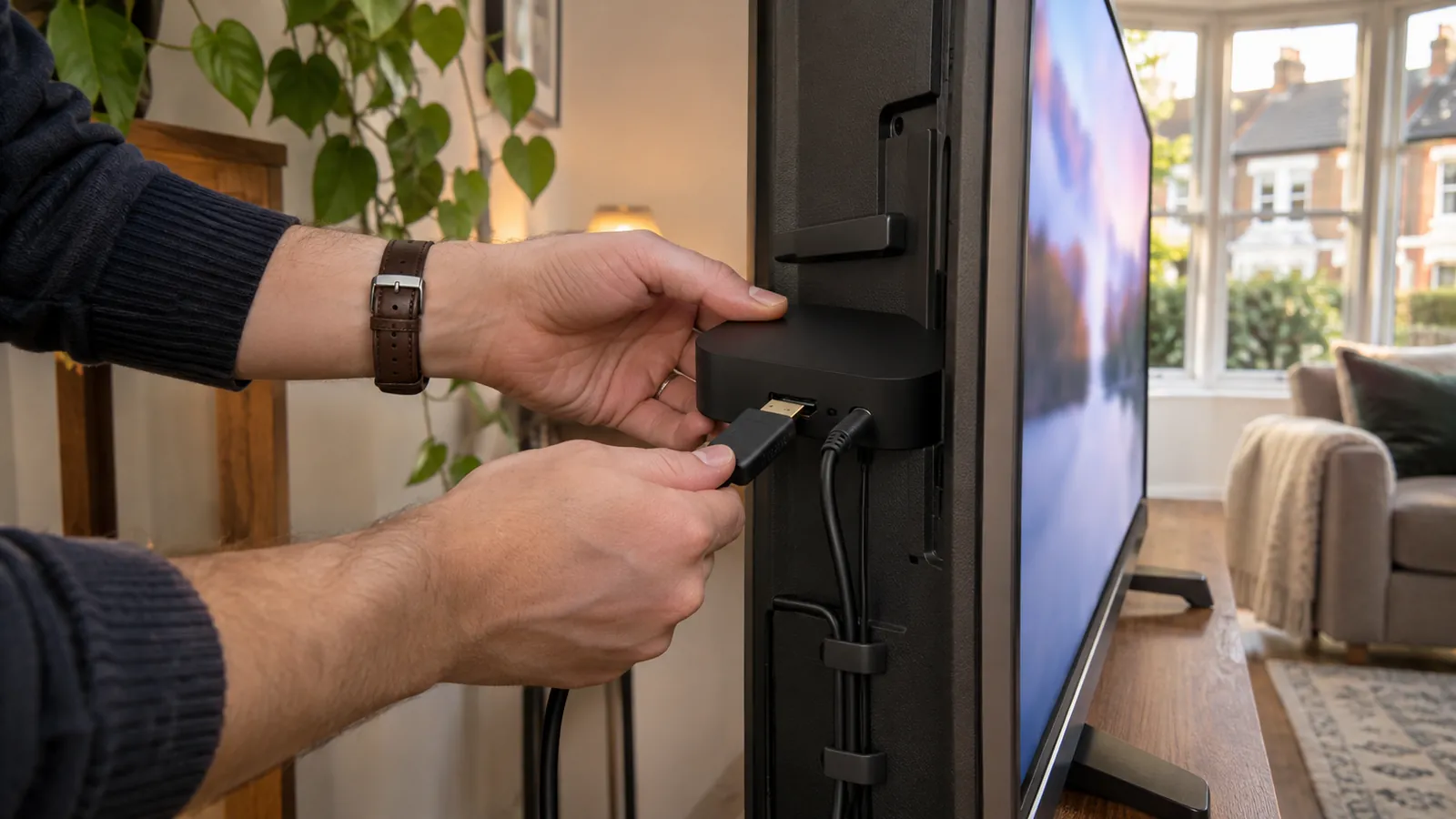
To set up Freely on TV, you need a Freely-enabled television or a Freely streaming device for your existing TV, plus home broadband. Freely offers both equipment routes, so replacing your television isn't automatically necessary. The useful first decision is whether you're keeping your screen; after that, preparation, the setup wizard and separate broadcaster-player sign-ins get you to your programmes.
Check what you need before buying or connecting anything
Freely brings live channels and on-demand content together for free through supported equipment. It's a collaboration between the BBC, ITV, Channel 4 and Channel 5, with features including restart. Everyone TV runs Freely, Freeview and Freesat, but their shared operator doesn't mean they use the same connection.
| Your situation | Equipment or connection to check | What to do |
|---|---|---|
| Replacing your television | A Freely-enabled TV | Choose equipment explicitly equipped with Freely; listed examples include the Sharp 24" 24HE2245K from £139 and Toshiba 32" WV25 from £149, checked 22 October 2026. See Freely TVs. |
| Keeping your current television | An HDMI port | Add a Freely streaming device, plug it into HDMI and connect to Wi-Fi. Check the existing-TV route. |
| Adding terrestrial channels on a Freely TV | An optional aerial and the TV's aerial input | Connect the aerial before starting first-time setup. Check connection preparation. |
For the existing-TV route, Freely's list names the Manhattan Aero 4K TV Streamer from £225 and Netgem PLEIO 4K Puck from £99, checked 9 October 2026. These are dated starting prices; prices vary by retailer. Compare the listed streaming devices after checking your HDMI connection, rather than assuming you need a new screen.
Freely recommends a minimum broadband speed of 10Mbps for live streaming and on-demand content. Its channels arrive over home broadband via Wi-Fi, whereas Freeview relies on an aerial signal. An aerial is optional on a Freely TV: it adds terrestrial channels rather than supplying the internet channels.
If you're comparing that route with Freeview Play, Freeview Play combines free live and on-demand TV, search and recommendations, with recording, pause and rewind through a Freeview Play recorder. It needs an aerial connected to a Freeview Play TV or set-top box and broadband; its minimum for catch-up and on-demand is 2Mbps, counting towards any monthly data allowance. An aerial upgrade and/or receiver may be required, and channels depend on location and coverage.
For aerial reception on a Freely TV, check its condition and direction towards a transmitter; roof aerials tend to perform better than indoor or loft aerials. The socket may say RF in, Antenna, Aerial or Ant in, so the label needn't match the word you expected. If you're keeping your television, check HDMI first; if you're adding terrestrial channels, check the aerial input too.
How to set up Freely on TV and open your programmes
Have your Wi-Fi password ready before switching on your new Freely device. If Ethernet is available, Freely recommends connecting the cable first: the wired connection is automatic. That settles the connection before you start responding to setup screens, rather than interrupting the wizard to change your cabling.
The typical Freely setup choices are listed below, although their sequence and available options vary by television or streaming device. Treat the labels on your own screen as the route through setup, rather than expecting every model to show an identical sequence.
- Choose the language.
- Set your location and enter your postcode for the region.
- Connect to the internet.
- Complete the channel scan offered by your equipment.
Finishing those screens doesn't complete every on-demand sign-in. BBC iPlayer, ITVX, Channel 4, 5 and U require separate player sign-ins for their on-demand programmes.
Use the right Manhattan Aero button
On Manhattan Aero specifically, the Freely button opens Browse, while Guide opens the live TV Guide, with a schedule up to seven days ahead. Browse shows what's on now and on-demand picks. If you wanted the schedule but landed among recommendations, use Guide rather than repeating the setup process.
Aero's four tabs are Browse, TV Guide, Search and Settings; move between them with left and right on the remote. Press Back repeatedly to retrace menus one level at a time, or hold Back briefly to return straight to live TV. If you're moving around Aero after setup, use those controls to reach the intended screen.
Check your regional channels and live-pause controls
Your setup postcode determines Freely's regional channels. Freely gives BBC Scotland versus BBC England, and BBC East Midlands versus BBC Anglia, as examples. That makes the postcode a viewing choice with a visible result, rather than just another box to complete during installation.
If the regional channels are wrong, open Settings and find Language and location, usually within the System Menu, then update your location and region. The exact path varies by device. For the wrong regional selection, this is the relevant adjustment; keep it separate from the aerial-reception checks.
Aerial and Wi-Fi channels appear together in the Freely TV Guide, while the aerial line-up depends on your transmitter and region. The Freely channel list includes BBC One, ITV1, Channel 4, 5, Film4 and U&Dave. A single guide therefore brings together channels whose delivery methods can differ.
That distinction matters when you press pause. Most live channels watched over Wi-Fi support pausing for up to 15 minutes; channels watched through an aerial cannot be paused, because they're delivered differently. Pausing an on-demand programme depends on its broadcaster player. If pause fails, identify the delivery method or player before treating it as a setup fault.
Free access also has a separate viewing requirement: you need a TV Licence to watch or record live TV on any channel or service, on a television, computer or other device, and to use BBC iPlayer. If you're about to watch live channels or use BBC iPlayer, make sure you have a TV Licence before viewing.
Choose the right update or rescan procedure
A Wi-Fi-only Freely device doesn't have an aerial rescan to perform. Freely updates automatically; to check manually, open the TV Guide, select the gear icon at the top right and choose Software Updates. If you're using broadband alone, that's the relevant Freely maintenance route rather than an aerial-tuning menu.
An aerial-connected Freely TV may need a rescan when the channel line-up changes, although most televisions prompt automatically. Freely's generic manual route is Settings > Channel, or similar > Auto Scan; consult the manufacturer's manual for your television's exact path. Here you're scanning the aerial channels, so use this procedure when that connection is involved.
Device software and player apps have their own update routes. Check the device's Software Update option, usually under System; player apps update automatically or through the device app store. That distinction is useful when one player is troublesome: the television's software setting, the player's app update and Freely's own update menu are separate places to check.
For the channel-maintenance decision here, use Software Updates on Wi-Fi-only Freely equipment and Auto Scan when an aerial-connected television needs its terrestrial line-up refreshed.
Resolve connection and player-login problems
If a Freely device won't connect to Wi-Fi, check connection speed and signal strength, or contact your broadband provider; contact the manufacturer for device-specific help. To select another Wi-Fi network, Freely's generic route is Settings > Connection. Start with the connection you're actually trying to use, so you're not changing player settings while the device remains offline.
For a player-login failure, check known issues and whether other apps or devices connect, alongside the speed recommendation and update routes already described. That comparison helps distinguish a wider connection failure from one affected device. If only a particular screen is affected, keep your troubleshooting focused there rather than assuming every broadcaster player has failed.
Match the reinstall route to your equipment
On a TV, Freely's generic reinstall route is Home > Settings > System > Application Settings > Freely > Uninstall App, then select Freely again to reinstall. Consult the manufacturer if those menus differ. The important screen is Freely's application entry, rather than an unrelated broadcaster-player entry.
For a streaming device, the generic route is Home > settings > Freely > Uninstall the Operator Application, then Install the Operator Application. Menu details can vary, so consult that device's guide. Use the streaming-device procedure when that's the equipment attached to your television.
When a changed password leaves Manhattan Aero looping
A specific Manhattan Aero problem can follow a Wi-Fi password change: “Unable to connect” repeats even though other devices connect, and restarting Aero or the router doesn't clear it. Manhattan identifies this as an Aero software issue and gives a factory reset as the fix. This scenario calls for its documented remedy rather than another restart.
Before resetting, have your Wi-Fi password ready, unless using Ethernet, and sign-in details for all your apps. The reset retains software updates but returns every other setting to its default and signs you out of all apps. Knowing that before confirming lets you prepare for the setup screens and player sign-ins that follow.
Press the settings button at the bottom right of the Aero remote, select System > Factory Reset and confirm. Allow around five minutes; Aero restarts itself and begins first-time setup. If the original problem returns immediately afterwards, contact the manufacturer instead of resetting again.
Can I get Freely on my existing TV?
Yes, if your TV has an HDMI port: connect a Freely streaming device to it and connect the device to Wi-Fi.
Do I need an aerial for Freely?
An aerial is optional on a Freely TV. Its internet channels don't require one, while an aerial can add terrestrial channels through the TV's aerial input.
Why do I need to sign into ITVX after setting up Freely?
Freely setup doesn't replace broadcaster-player sign-ins. Sign into ITVX separately to watch its on-demand programmes.
Why has Freely given me the wrong BBC region?
Freely uses the postcode entered during setup to select regional channels. Update location and region under Settings, then Language and location, usually within System; the exact route varies by device.
How do I retune Freely without an aerial?
A Wi-Fi-only Freely device has no aerial rescan. Freely updates automatically, or you can check manually through the TV Guide's top-right gear icon and Software Updates.
Why won't my Manhattan Aero connect after I changed my Wi-Fi password?
Manhattan documents an Aero-specific software issue that can cause an “Unable to connect” loop after a password change. Its fix is a factory reset, which resets settings and signs you out of apps while retaining software updates. Prepare your Wi-Fi password and app sign-in details first; contact the manufacturer if the problem immediately returns.